All chapters
Circle, posts & Discover
In your Circle you see what your people are up to. Discover has videos from events all over opia.
What is the Circle?
2 hours ago
 532

Afterhour Rave


Lara and 3 other friends are attending
48Yesterday
 218
The Circle is your feed: photos and videos of the people you follow, and which events they attend. If it’s empty, tap “Find people” and follow a few.
How do I post photos or videos?
- In the Circle, tap “+” at the top – or swipe an event in the list to the left.
- Under “Select Event”, choose the event you’re posting to. At an event you attend, it’s already picked.
- Add photos and videos (“select media” or “take media”). Drag to reorder; the first one becomes the cover.
- Check the post with “Preview post” and tap “post”.
Posting to an event means you attend it. Your posts are on your profile under “Memories”. If an upload stops, the app shows what went wrong, with “Retry” and “Discard”.
How do I like and comment?
Double-tap a photo or video, or tap “Like”. “Show likes” shows who liked it. Spread two fingers and the photo or video grows (see How do I zoom into a photo or video?).
Under a post, tap “Add a comment”. To answer a comment, tap “Reply”; the person is mentioned with their @handle. Delete your own comments with “…” → “Delete comment”: it disappears for everyone under this post.
What can I do when friends are going to an event?
Your Circle shows, for example, “Lara is attending”: at the top, in colour, the event with its picture, name, place and time, and below it the row with the person. Tap the coloured event part or the empty space in the row below: opia switches to the Events tab and opens the event there. When you close it (on iPhone with ✕ or by pulling it down, on Android and desktop with Back), you see the list of events. When you switch back to the Circle, it’s right where you left it.
Tapping the person’s picture or name opens their profile; if several friends are going, the list of everyone attending – like the number next to it. Tap “Reply” and write something: they get your reply as a chat message. If several friends are going, you choose who gets it.
If the event has been deleted in the meantime, you see “This event is no longer available.”
What does the “… performs” card show?
If you follow artists, your Circle shows you when they perform at an event: at the top, in colour, the event with its picture, name, place and time, and below it, for example, “Nina performs” or, if several of them are on the same line-up, “Nina and 2 other artists perform”. Tap the coloured event part: opia switches to the Events tab and opens the event there. When you close it (on iPhone with ✕ or by pulling it down, on Android and desktop with Back), you see the list of events. When you switch back to the Circle, it’s right where you left it.
The row with the artists opens the artist’s profile if there is just one. If there are several, it also opens the event in the Events tab – they’re all listed in its line-up.
If the event has been deleted in the meantime, you see “This event is no longer available.”
What is Discover?
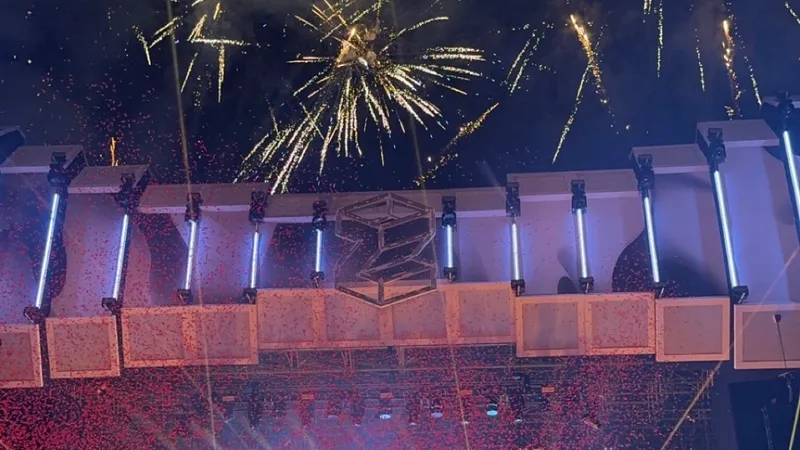
The Discover tab plays videos from events full screen – not just from people you follow. Swipe up for the next one. “Find similar events near me” shows what’s on around you. Under “…” you find “Not interested”, “Report post” and “Block …”.
Don’t need the tab? Turn off Settings → Events & Discover → “Show Discover tab”.
Who sees my videos in Discover?
Discover may show your video posts to people who don’t follow you. If you don’t want that, turn off Settings → Privacy & Security → “My videos in Discover”. Your videos stay visible on your profile, at the event and to your followers.
Still have questions?
Have a look at the FAQ or write to us – we’re happy to help.
Last updated: 17 November 2026