All chapters
Discovering events
The Events tab shows what’s on – near you, by date or picked for you.
How do I find events near me?
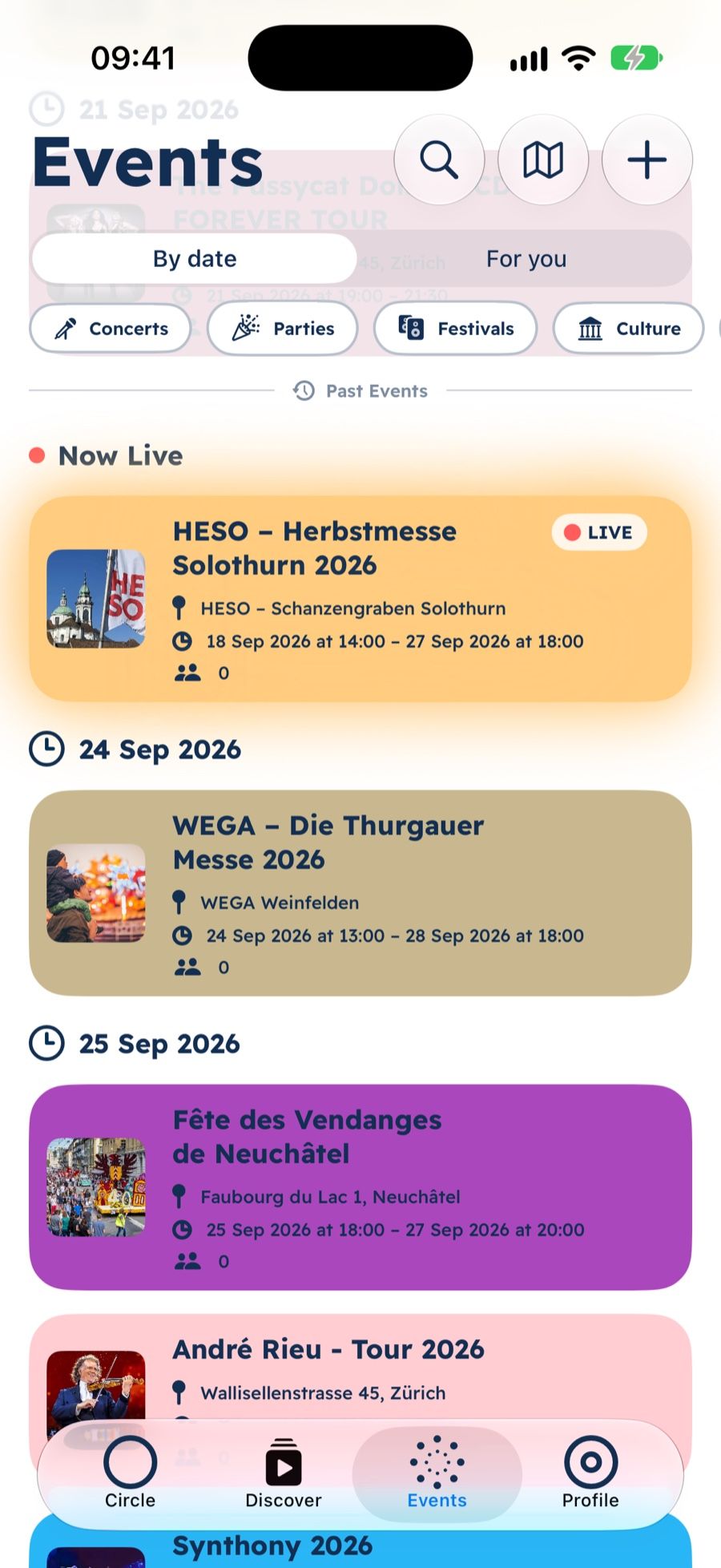
Open the Events tab. At the top you choose the order:
- “Nearby”: the closest events first. opia needs your location for this – or a place you type in (see Can I choose another place, say Winterthur?).
- “By date”: everything in order.
- “For you”: events that match your interests come higher (see How do I personalise “For you”?).
The tags below (such as concerts, parties, festivals) filter the list. Events that are on right now glow in their colour and say “LIVE”; if one is very close, it says “NEAR YOU”. Scroll up for past events.
How close counts as nearby is set under Settings → Events & Discover → “Near me radius”: “Close”, “Standard” or “Far”.
Can I choose another place, say Winterthur?
Yes. In the Events tab, tap the title at the top – where the tab’s name and your place take turns. “Location” opens:
- Type a place into “Enter a place, e.g. Winterthur” and pick a suggestion. If nothing matches, it says “No place found”, and without a connection “Check your connection and try again.”
- “Use current location” locates you with your device again.
A place you typed in counts wherever opia needs distances: for “Nearby”, the distances on events, the map and Discover – on the iPhone also for the widget and for Siri when you ask for events nearby without naming a place. Its name then shows at the top of the tab. It stays, even when you close opia, until you choose “Use current location” again – until then, opia doesn’t locate you at all.
How often opia locates you otherwise is set under Settings → Events & Discover → “Find my location” (see How often does opia locate me?).
How does the map work?
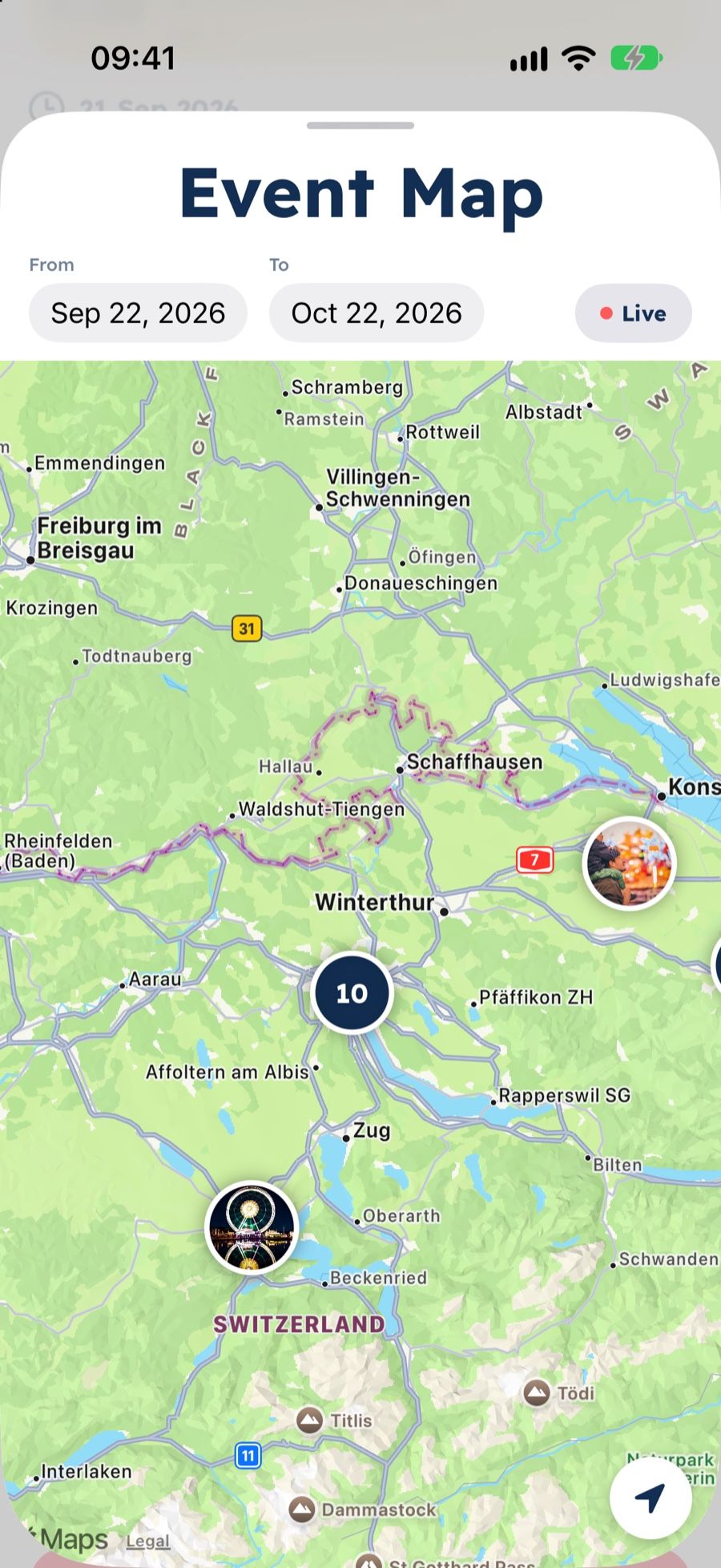
In the Events tab, tap the map icon at the top. Events show as dots with their cover image; where several are close together, you see a number. Tap a dot for the event or the list of events at that place.
What does an event show me?
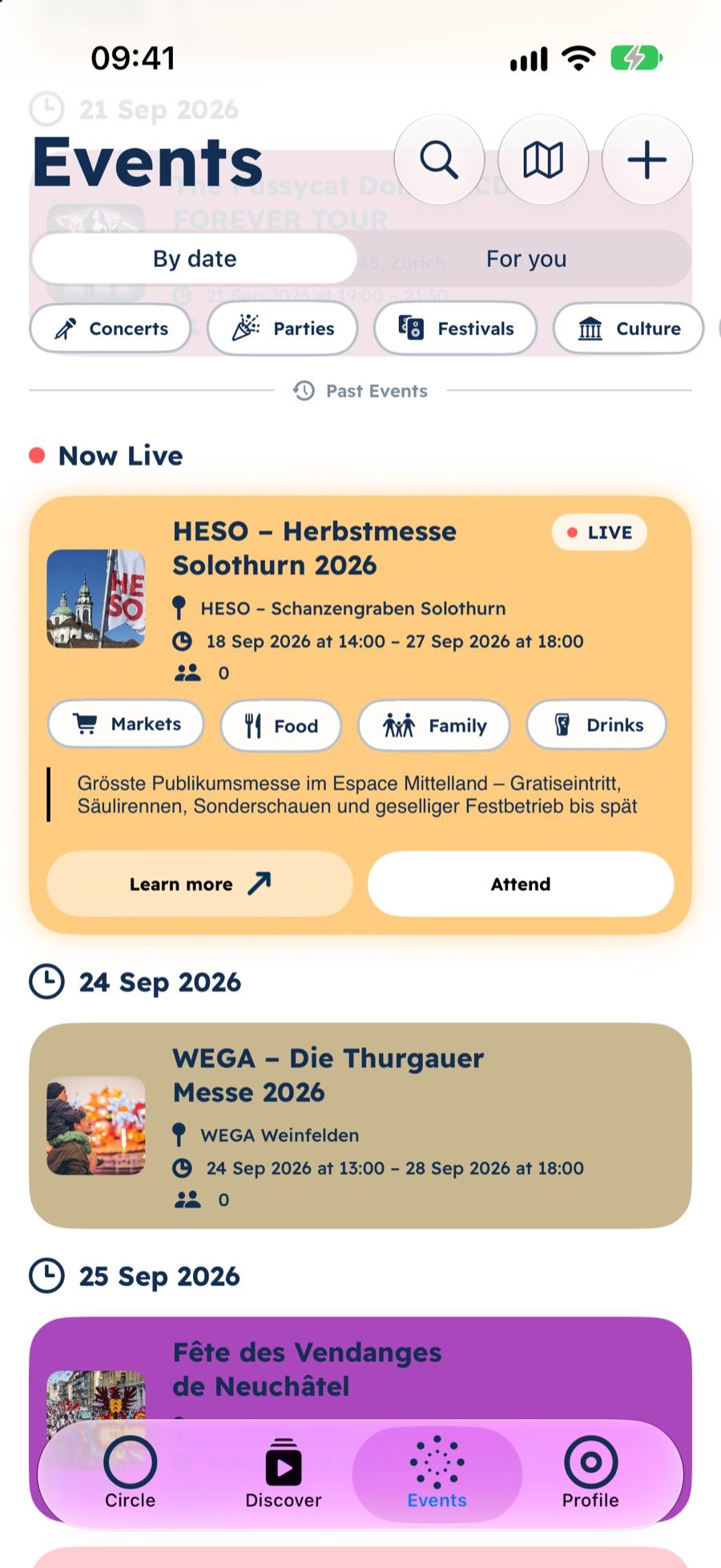
Tap an event to open it. You see date and time, place, description, the line-up, how many people attend and which of your friends are going (“Friends attending”). Tap the cover image to see it full size; zoom in with two fingers (see How do I zoom into a photo or video?).
Under “Learn more” you find “Navigate to Event” (opens the route in Maps), “Open Website”, “Mute updates” and “Report event”.
Can I translate an event’s description?iPhone only
Yes. If the description isn’t already in the app’s language, a small “Translate” appears below it in the open event. Tap it, and Apple’s translation window shows you the translation.
How do I attend an event?
In the open event, tap “Attend”. Your friends see in their Circle that you’re going, and the event shows on your profile. “Withdraw Attendance” undoes it. Past events say “Attended”.
What does the star ☆ “Interested” mean?
Tap ☆ to follow an event without attending. If it’s cancelled, moved or gets new acts, you’ll be notified. The same goes for events you attend.
Don’t want updates for an event: “Learn more” → “Mute updates”. “Unmute updates” turns them back on. To turn off all event updates at once, see Which push notifications can I set?.
How do I share an event?
Swipe an event to the right – in the list or in search. In “Share event”, pick people and groups on opia, add a message if you like (“Add a message (optional)”) and tap “Send to”. Below, you can “Copy link”, show a “QR code” or share the event through “Other apps”.
In a chat it works too: “+” next to the text field → “Event”.
Swipe an event to the left and a new post for that event opens (see How do I post photos or videos?).
How do I search for a specific event?
In the Search tab, tap “Scene” at the top and type a name, place, tag or artist into “Search artists, venues and events” – past events are found too. The results are under “Your events”, “Happening now”, “Coming up” and “Past events”; tap one to open it. More on search: How does search work?.
Can I search for events in plain words?iPhone only
Yes, with Apple Intelligence. In the Search tab, type what you feel like, for example “parties this weekend in Zurich”. If what you type reads like a sentence – three words or more, or with a time such as “tomorrow” or “Saturday” – “Understand as filters” appears below it with a sparkle. Tap it. While your iPhone reads the sentence, a spinner turns; “Cancel” stops it.
Then the filters Apple Intelligence understood appear below the search field:
- Time: “Today”, “Tonight”, “Tomorrow”, “This weekend”, “Next weekend”, “This week”, “Next week” or a day such as “Sat, 21 Nov”,
- Place: the place you named with a radius, such as “Zurich · 25 km”, or “Nearby · 10 km” if you write “near me”; if you name a distance, that one applies,
- Category: the kind of event, such as “Parties”.
The remaining words stay in the search field. Under “Scene” you then see only events that match the filters, no artists or venues. Tap a filter to remove it; the round ✕ button at the end removes them all, and the ✕ in the search field clears the text too. The place only applies to this search: your location and a place you typed in the Events tab (see Can I choose another place, say Winterthur?) stay as they are.
If your iPhone can’t find a place you named – without internet, for example – or doesn’t know your location for “near me”, there’s no place filter; the place word then stays in the search field. If you type a new sentence while filters are shown, “Understand as filters” appears again; its filters replace the previous ones.
If Apple Intelligence can’t make anything of the sentence, the normal search for your words stays.
How do I personalise “For you”?
Under Settings → Events & Discover → “Interests”, pick the kinds of events you’re into under “What are you into?”. Events with these tags rank higher in “For you”.
On iPhones with Apple Intelligence, suggestions like the events you go to or keep come on top of that (see What does “Matches you” in “For you” mean?).
What does “Matches you” in “For you” mean?iPhone only
In “For you”, Apple Intelligence suggests events like the ones you go to or keep – for example with similar music, with the same artists or with similar words in the description; the place only counts together with something else. These events move up and carry the label “Matches you” with a sparkle. The label only shows when an event really moves up because of it; an event far away moves up less than one near you. While you scroll or have an event open, “For you” doesn’t reorder; new suggestions show when you’re back at the top of the list or next time you open the Events tab.
Tap “Matches you” or press and hold it to read: “Apple Intelligence suggested this event on your iPhone, based on events you go to or keep.”
What counts:
- events you attend or attended (see How do I attend an event?),
- events with ☆ “Interested” (see What does the star ☆ “Interested” mean?),
- events where you kept sets in “My plan” (see How do I keep sets?),
- events you created yourself,
- artists and accounts you follow, when they’re on an event’s line-up – this counts right away, even before Apple Intelligence has looked at your events.
Those events themselves don’t move up – you know them already. The suggestions are only in “For you”, not in “Nearby” or “By date”. You can turn them off under Settings → Events & Discover → “Interests” → “Suggestions with Apple Intelligence”; the switch starts out on. Turning it off deletes the taste profile Apple Intelligence made from your events and the stored suggestions, and “Matches you” disappears right away; turning it back on makes your iPhone work them out again. Your interests still count.
Still have questions?
Have a look at the FAQ or write to us – we’re happy to help.
Last updated: 17 November 2026